MYOB Sync for BigCommerce: Detailed Setup Guide
BigCommerce · Practical documentation · Reviewed 12 November 2026
Connect BigCommerce orders, customers, payments and refunds with MYOB, with optional stock, product and price updates.
Before you start
- BigCommerce app installation access for your store.
- The store owner’s approval and an authorised MYOB login.
- Matching product/variant SKUs and MYOB item numbers.
- The company currency, tax codes, inventory location and accounts for the flows you enable.
Contact MySync for installation access while the public BigCommerce Marketplace listing is being prepared. Existing approved stores can open the app from BigCommerce Apps.
The setup sequence
- Install the approved BigCommerce app
- Open the app from BigCommerce
- Connect MYOB and confirm the company file
- Import and configure a small sample
- Choose whether to record credits and refunds
- Test stock, product and price updates
- Run transfers, then enable a schedule
- Manage billing, uninstall and reinstall
Step 1 of 8
Install the approved BigCommerce app
The public Marketplace listing is in progress. Contact MySync for installation access, then install the approved MYOB Sync app for your store and accept its permissions. Allow pop-ups for the BigCommerce control panel if the app cannot open.
Step 2 of 8
Open the app from BigCommerce
Select Open MYOB Sync from BigCommerce Apps. The app prepares the store owner’s MySync setup and signs the owner in automatically; an account created during installation does not need a separate MySync password. Check that the intended store is selected.
Authorised staff can view imported records and run read-only imports. The store owner manages provider connections, settings, transfers and billing. Removing a staff member’s app access revokes their MySync access to the store.
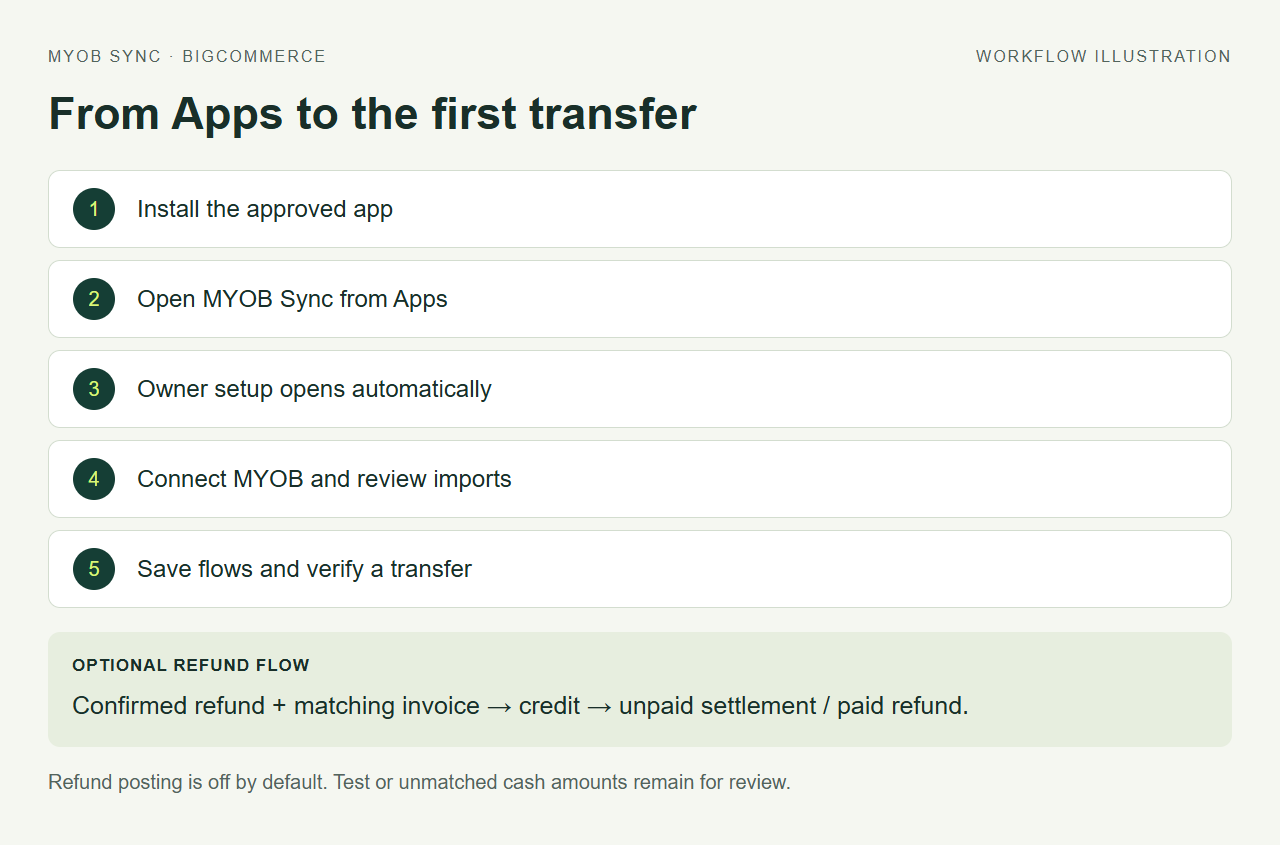
Step 3 of 8
Connect MYOB and confirm the company file
Go to Connections and select Connect MYOB. Sign in to MYOB, approve access and confirm the company file for this store. Review the company name before running any transfer. If MYOB reports an approval error, restart the connection from the app and send the error text to support if it continues.
Step 4 of 8
Import and configure a small sample
In Sync jobs, import products, customers and orders. Review matching in Products and Customers. In Settings, choose the company currency, taxable and zero-tax codes, customer strategy, eligible order statuses and modification lookback.
Enable the sales document types you need. With orders and invoices both selected, completed eligible orders create invoices and other eligible orders create sales orders. Enable confirmed payments separately and select the MYOB bank account. Test-mode, failed or unconfirmed transactions remain for review.
Step 5 of 8
Choose whether to record credits and refunds
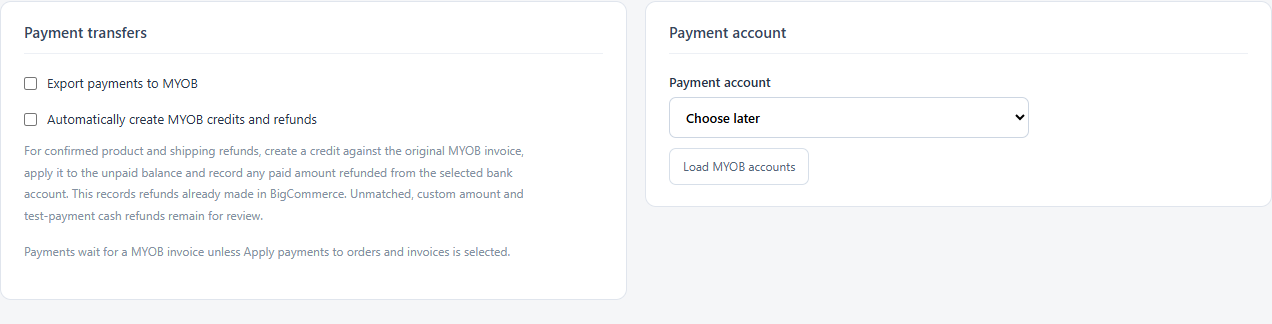
In Settings → Payments, select Automatically create MYOB credits and refunds only if you want this flow, then save. It is off by default and runs with your transfers.
For supported confirmed product and shipping refunds, the app creates a credit against the original MYOB invoice, applies it to the unpaid balance and records the paid portion refunded from the selected bank account. This records a refund already made in BigCommerce; it does not send money through a payment gateway.
Order-only sales awaiting an invoice, unmatched or changed invoices, custom-amount or fee refunds, foreign currency and unconfirmed cash payments remain for review. Check the source refund and the MYOB documents before resolving an exception manually.
Step 6 of 8
Test stock, product and price updates
Choose the BigCommerce inventory location before enabling MYOB stock updates. Configure product and price flows separately, select the price direction and fields, and review whether zero prices should be ignored. Use the optional test SKU to limit catalogue updates while checking a known product; that filter does not limit sales imports.
Step 7 of 8
Run transfers, then enable a schedule
Save the configuration and run a manual transfer from Sync jobs. Compare the sales, customers, payments and any refunds with MYOB. Review Activity and record statuses. After the first result is correct, choose an eligible Hourly or Daily schedule and check the displayed UTC time. Importing or saving settings does not start a manual transfer.
Step 8 of 8
Manage billing, uninstall and reinstall
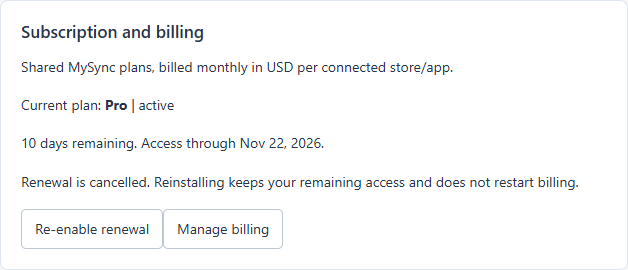
Use Account & help for plans and billing. Uninstalling MYOB Sync from BigCommerce cancels renewal while preserving the current subscription or trial end date. Store credentials are removed and sync work stops.
Reinstalling restores the same owner setup and shows the days of access remaining. It does not automatically restart renewal or create a new trial. The owner can select Re-enable renewal while the subscription is still eligible, or choose a plan after it has ended. Former staff access stays revoked until a fresh BigCommerce grant.
Document and payment behaviour
| Situation | What to expect |
|---|---|
| Orders and invoices both enabled | Completed eligible orders use invoices; other eligible orders use sales orders. |
| Payment with no linked invoice | Invoice-only payments wait for the invoice. Paying sales orders is a separate explicit choice. |
| Test-mode or unconfirmed payment | The transaction can be imported but is held for review rather than treated as confirmed cash. |
| Staff user | Authorised staff can view data and run read-only imports. Owner controls include settings, transfers, provider connections and billing. |
Automatic refund decision table
| Refund evidence and MYOB state | Result |
|---|---|
| Checkbox is off | The refund is not selected for automatic credit/refund posting. |
| Confirmed supported refund against an unpaid matching invoice | Create a credit and apply it to the unpaid invoice balance. |
| Confirmed supported refund with a paid portion | Record the paid portion refunded from the selected bank account, with the unpaid portion settled against the invoice. |
| Only a sales order exists | Review the original sale and its invoice/conversion before credit processing. |
| Custom amount, changed invoice, unmatched lines, unsupported currency or uncertain cash evidence | Leave the case for review rather than guessing the adjustment. |
For example, a supported refund of 100 in the company currency against an invoice with 30 still unpaid can settle 30 against the invoice and record 70 as the paid portion refunded, subject to the source evidence and account configuration. This is an accounting example, not a payment-gateway instruction.
Uninstall and reinstall checklist
- Uninstalling in BigCommerce stops sync access and requests cancellation of renewal.
- The saved subscription/trial end date determines the remaining access period.
- Reinstall and open the app from BigCommerce to return to the same owner setup.
- Check the days remaining in Account & help. Reinstallation alone does not enable renewal or start another trial.
- The owner can choose Re-enable renewal while eligible, or select a plan after the previous period has ended.
Before leaving the first run
- Confirm the store and MYOB company file before transferring data.
- Check one product match and one eligible sales document in both systems.
- Compare customer, currency, tax, freight and total before enabling more flows.
- Review payment and refund results separately from the sales document.
- Enable only the schedule and data flows you intend to run.
For a failed or uncertain result, use the MYOB Sync troubleshooting guide. Send support the platform, store, affected reference, run time and error text. Keep passwords, tokens and payment-card data out of the request.