MYOB Sync for Squarespace: setup and billing
Connect Squarespace commerce with MYOB for the sales, customer, stock, product and price flows your business chooses.
Before you start
- A Squarespace commerce website with API access and permission to approve the connection.
- A MySync account and MYOB access to the intended online company file.
- Unique variant SKUs matching MYOB item numbers.
- The correct currency, sales tax codes and payment or fee accounts for your flows.
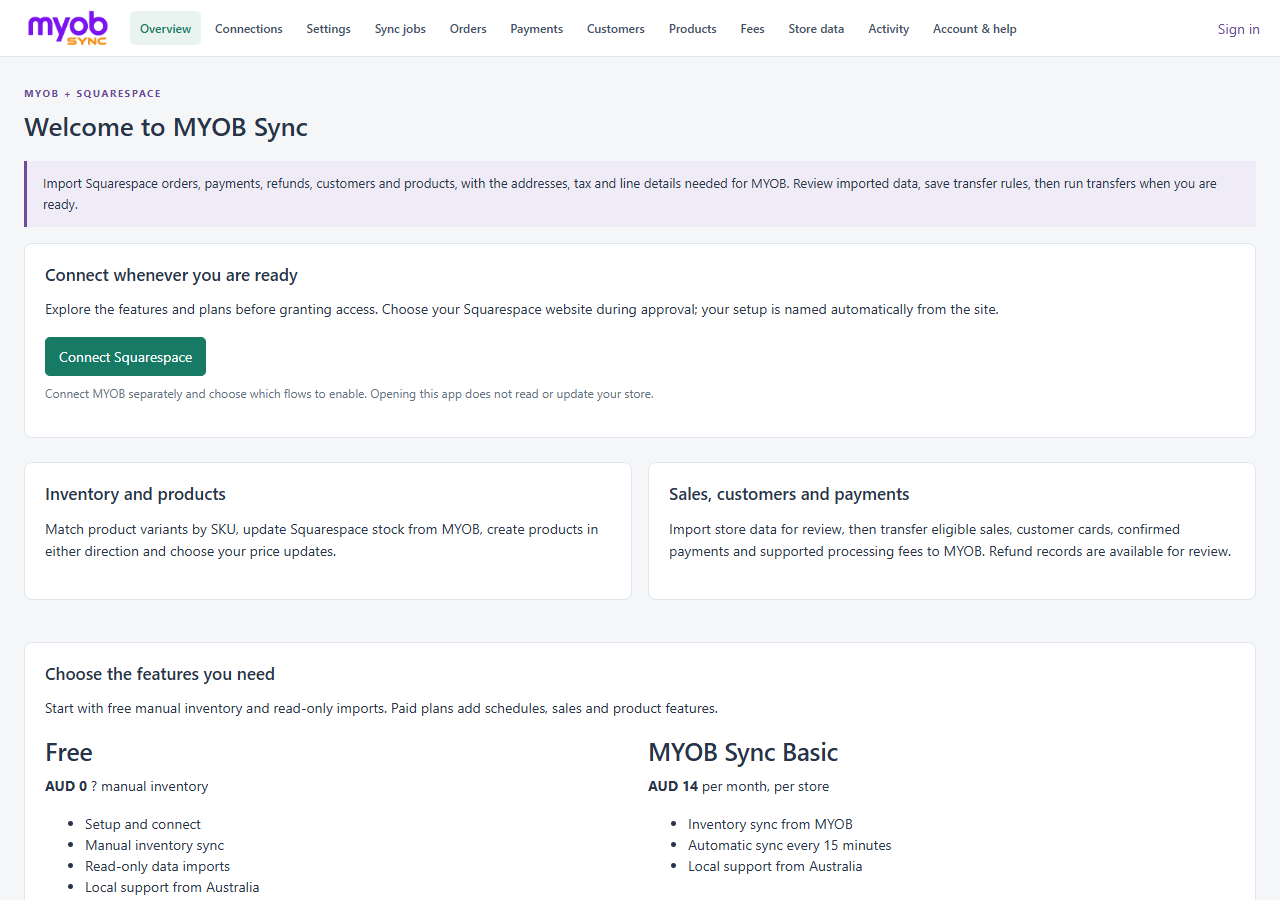
Review the app and plans before signing in or granting access. When ready, connect Squarespace, approve the intended website and connect your MYOB company file separately.
Open the app and connect your website
Open MYOB Sync for Squarespace to see features and AUD plans before creating an account. Click Connect Squarespace, sign in or create your MySync account, then continue the connection. Select and approve the intended Squarespace website. MySync names the setup from the website title after approval; no store-name form is required.
An administrator may also use the API-key connection method under Connections on an eligible Squarespace plan. Grant Orders, Transactions and Contacts read access, plus Products and Inventory read/write access. Keep the API key private and disconnect it when no longer required.
Approve the MYOB company file
After Squarespace is connected, choose Connect MYOB. Sign in, approve access and check the company file shown in Connections. The file approved through MYOB is used automatically. A new connection starts with manual scheduling and transfer flows disabled. Reconnecting to another company file resets transfer preferences.
Import and review matching
Open Sync jobs and import products, customers, orders and payments for review. Read-only imports do not create provider records. Compare variant SKUs with MYOB item numbers and review missing or duplicate matches. Guest billing and delivery details are captured from orders; contacts are imported separately.
Choose sales, customers and payment rules
In Settings, choose the company currency, eligible order statuses and lookback. Configure taxable and zero-tax MYOB codes, orders or invoices, and individual customer cards or a default customer. Enable confirmed payments separately and choose the clearing or bank account. Payments normally wait for a linked invoice; applying payments to orders is an explicit option.
Transactions provide accounting amounts, installments and tax evidence. Unsupported currency, missing tax evidence and totals that do not reconcile remain for review. A configured single-rate tax fallback should be used only when appropriate for the store.
Configure inventory, products and prices separately
Inventory sends MYOB quantity on hand to matched finite Squarespace variants. Use unique SKUs and review unlimited, digital or unsupported variants. Product creation and price updates are separate Pro flows. MYOB-to-Squarespace products start hidden on the chosen store page; check presentation and shipping before publishing. Squarespace-to-MYOB creation produces missing non-inventoried bought/sold items using the selected accounts and tax codes.
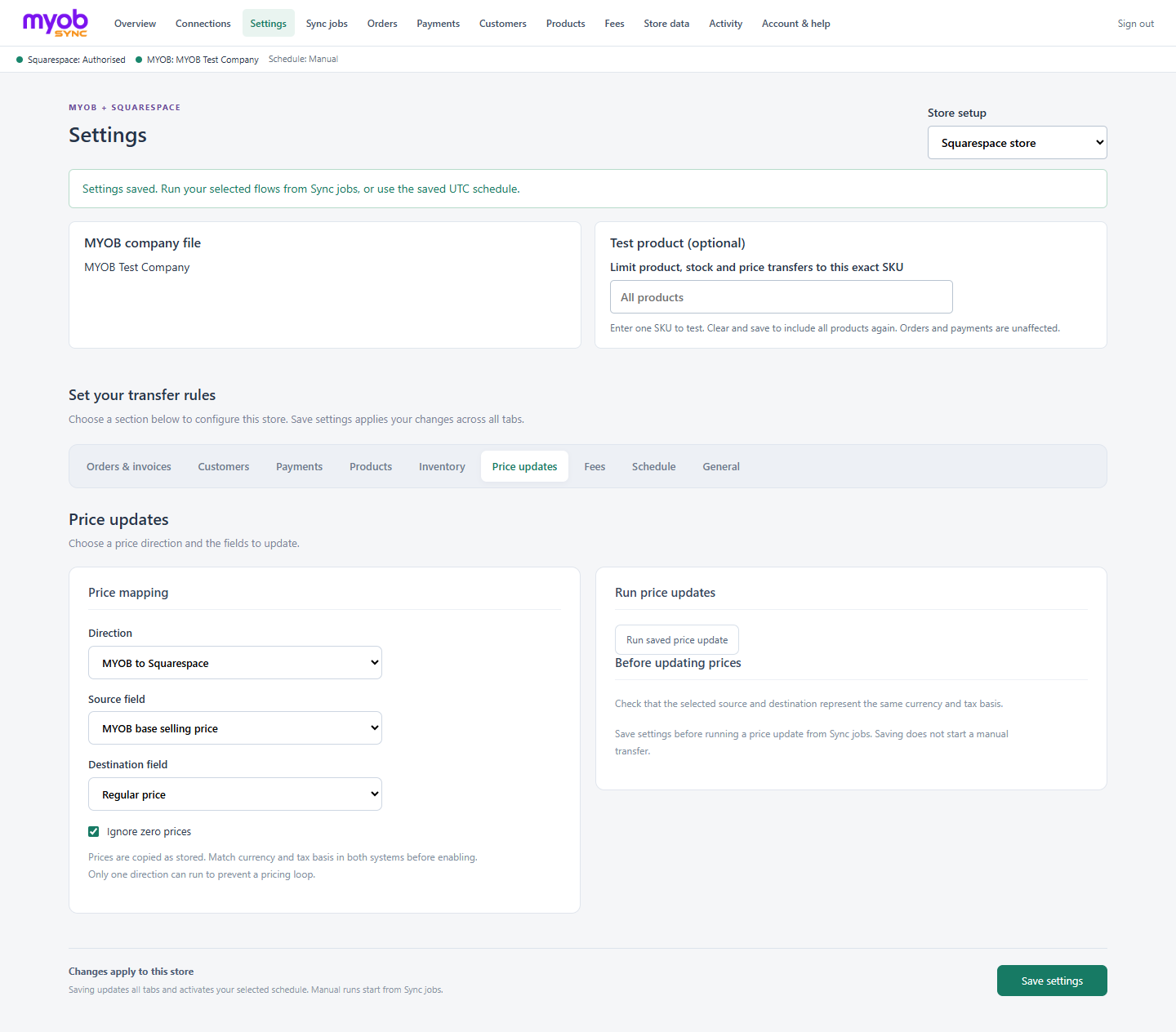
Choose one price direction at a time and retain zero-price protection where needed. Review one test SKU before expanding updates.
Review fees and refunds
Processing fees are captured separately from gross customer payments. To post supported fees, enable the fee flow and select the payment clearing account, fee expense account and a zero-tax fee code. Squarespace does not itemise fee tax for this workflow. Refunds and fee refunds are imported for review; this edition does not automatically post MYOB credits or refund payments.
Check a test run, then schedule and manage billing
Compare one eligible sale, its customer, tax, freight, total and payment in both systems. Repeat the run to check duplicate protection. Review Sync history and Activity before enabling a schedule. Paid schedules offer 5, 15 or 30 minutes, hourly or daily. Times are UTC; no webhook-driven immediate sync is promised.
Free includes manual inventory and read-only imports. Basic is AUD14/month, Plus AUD28/month and Pro AUD44/month per connected store, with a 14-day first paid trial. Open Account & help > Manage billing to change or cancel a subscription. Cancelling renewal retains access until the displayed end date. Disconnecting Squarespace or MYOB does not cancel billing.
Final checklist
- Confirm the store and MYOB company file before transferring data.
- Check one product match and one eligible sales document in both systems.
- Compare customer, currency, tax, freight and total before enabling more flows.
- Review payment and refund results separately from the sales document.
- Enable only the schedule and data flows you intend to run.
App screens