MYOB Sync for Square: Setup and Troubleshooting
By the MySync team · Updated 17 November 2026
Follow this guide to configure and check your Square connection. Review the current app and provider permissions for the flows you choose.
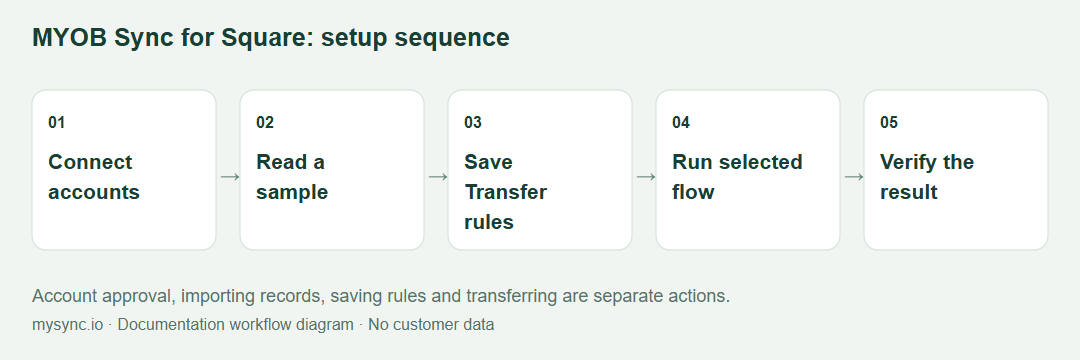
Prepare the account and sample
This guide covers the practical MySync workflow for Square. The Square product page describes features and business use cases separately.
- An Australian Square account and an active location using AUD.
- An online MYOB company file and appropriate item, tax and bank mappings.
- Consistent SKU identifiers, plus explicit account mappings for cash, external tender, tips or service charges when used.
Choose a small source sample with an expected destination result. Use an authorised company file and keep automatic flows off while checking the first run. Your MySync subscription and your provider’s own subscription are separate.
Sign in and connect the accounts
- Open MYOB Sync. Register if needed, verify the account and choose Square. Existing users return to their saved app.
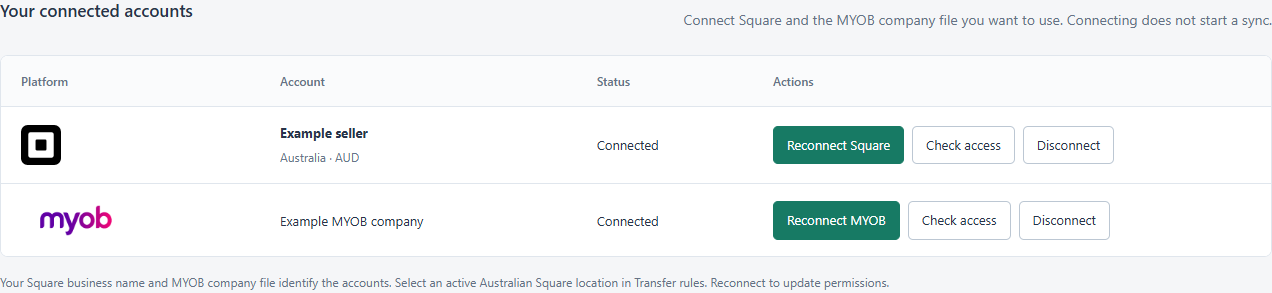
- Open Connections. Read the platform account name and the MYOB company-file name before continuing.
- Use Connect Square in the account row and approve the Australian merchant account. Connect MYOB in its own row and check both displayed names. If several Square locations are available, choose the intended location in Transfer rules.
- Use the action in the relevant account row. OAuth approvals open on the provider’s own site. Where a credential form is needed, enter it only inside the app.
- After approval, return to Connections and confirm the displayed account and status. Reconnect when access needs renewing; do not copy an expired authorisation URL.
Connecting grants access but does not enable every transfer. Start with a read-only import and deliberately save the flows you want.
Choose the location
After approval, review the Australian merchant and AUD location. A single eligible location can be selected automatically; choose explicitly when the merchant has several. Confirm the destination before any stock updates.
Import a representative sample
Read products, customers and orders that include your usual online or POS tender types. Inspect exact SKU matches, a split payment and any tips or service charges your business uses.
Map sales and tenders
Choose the sales document and customer strategy, tax codes, item fallback and receiving accounts. Cash and external tenders need explicit bank mappings; do not treat an approved payment as settled funds.
Test inventory and catalogue separately
Use one matched variation to check the location, MYOB quantity and price source. Review product creation separately so a stock run does not unexpectedly become a catalogue publishing decision.
Reconcile fees, payouts and refunds
For supported financial flows, compare gross payments, processing expenses and the actual bank payout. Review itemised refund evidence against the original MYOB sale. Keep unsupported cases for manual investigation.
Check the key fields
Use this reference alongside Transfer rules. Controls vary by platform and entitlement; review the labels shown in your app rather than assuming another platform’s mappings apply.
| Field or decision | What to check |
|---|---|
| MYOB company | The approved destination file shown beside the MYOB logo in Connections. |
| SKU / item identity | Match the sellable source SKU or variant with the intended MYOB item; investigate ambiguous matches. |
| Customer strategy | Use the supported individual-customer or default-card strategy for the intended sale. |
| Tax and freight | Compare the source lines, tax codes, shipping and total before exporting the first sales document. |
| Inventory location | Select the location or warehouse supported by this platform and the intended stock source. |
| Run and schedule | Enable selected flows and save. A schedule must contain an actual timing selection; saving does not run a manual export. |
Run, inspect and repeat a small transfer
- Read the source records with the app’s import or preview action. Check the import count and a known source reference.
- Open Transfer rules, enable only the flows required by the sample and save. Review required fields and any highlighted sections.
- Start the relevant manual sync or transfer using the app’s job controls. Imports, previews, saved settings and completed transfers are different actions.
- Compare the actual MYOB document, quantity or financial entry against the expected source result. Review source currency, tax, freight, fees and receiving accounts where applicable.
- Run the same unchanged sample again. Existing completed work should be recognised. Investigate any uncertain result before repeating a financial write.
- When satisfied, select the required schedule and enabled flows. Review the time zone shown in the app and inspect the first scheduled result.
Track exported, unchanged, skipped, rejected and review outcomes separately. A successful run can still contain excluded or unsupported source records.
Resolve a failed or incomplete result
A tender or refund cannot transfer
Check location, currency and completed payment evidence. Map cash or external tenders explicitly and review the original sale for refunds. Unsupported gift-card or stored-value cases need separate review.
MYOB approval fails
Restart Connect MYOB from the app and approve the intended file. If MYOB reports a redirect-URI mismatch, send support the error text: that is an app-registration configuration problem, not a reason to share your MYOB password.
An automatic run never starts
Confirm the flow is enabled, required fields are saved, a real schedule is selected and the current plan includes it. A toggle without a timing selection cannot define when a job should run.
A transfer timed out or may already exist
Read the record note and inspect the destination first. Keep the original reference and run time. Do not create a manual duplicate while an outcome is uncertain. Use the app’s supported retry or review action once the actual result is known.
Manage billing and connection access
Free includes manual linked inventory updates and read-only imports. Basic AUD 14/month adds scheduled inventory, Plus AUD 28/month adds supported accounting flows, and Pro AUD 44/month adds advanced catalogue and price capabilities. Paid plans include a 14-day trial; confirm the current per-flow inclusions in the app.
Use Account & help or the app’s account screen to inspect current entitlements and billing controls. Disconnecting a provider is separate from cancelling a subscription. Use the available billing controls to manage renewal; ask support if you cannot access them.
Disconnect removes the credentials held for that link. Revoke the provider’s app grant or API key when you also want to remove access at the source. Review mappings and sample results again after replacing a company file or destination account.
Gather useful support evidence
Send support@mysync.io the app name, affected store or account, source record reference, run time and time zone, action attempted and exact error message. Include a provider request ID when shown. Keep passwords, client secrets, access tokens and payment-card data out of the message.
Related references: MYOB Sync troubleshooting, MYOB errors and logs and activity.
Choose another MYOB Sync guide
- Neto setup
- Shopify setup
- WooCommerce setup
- BigCommerce setup
- Squarespace setup
- Klaviyo setup
- Mailchimp setup
- Stripe setup
- PayPal setup
- eBay setup
- Amazon setup
Square integration features · Workflow planning guide · All help guides