MYOB Sync for Klaviyo: App Review Testing Instructions
Reviewer instructions for MYOB Sync for Klaviyo. Last reviewed: 18 November 2026. This document follows the sections in Klaviyo's App and Testing Requirements template and contains no account credentials.
1. App overview and customer workflow
MYOB Sync exports customer cards from an authorised online MYOB company file to Klaviyo profiles. It supports optional list membership, manual runs and hourly or daily schedules. Customer Sync costs AUD9 per month with a 14-day trial; MySync can arrange review access without requiring a charge. This integration does not export products, send events, generate branded metrics or subscribe profiles to email or SMS marketing. Klaviyo Sync for Neto is a separate app.
App: Open MYOB Sync connections. Setup guide: MYOB Sync for Klaviyo user guide. Review support: tom@mysync.io.
Arrange reviewer access
Contact tom@mysync.io before testing to arrange an authorised reviewer account, review-plan access and a dedicated MYOB test company file with synthetic customer cards. We will confirm the file name and expected test data privately. Do not use a production customer file. Never place passwords, API keys, OAuth tokens or recovery codes in this document or ordinary email. Access should be provisioned using an invitation or password-reset flow for the reviewer address supplied by Klaviyo. Coordinate any MYOB two-factor verification with MySync; codes expire.
Install and approve the connections
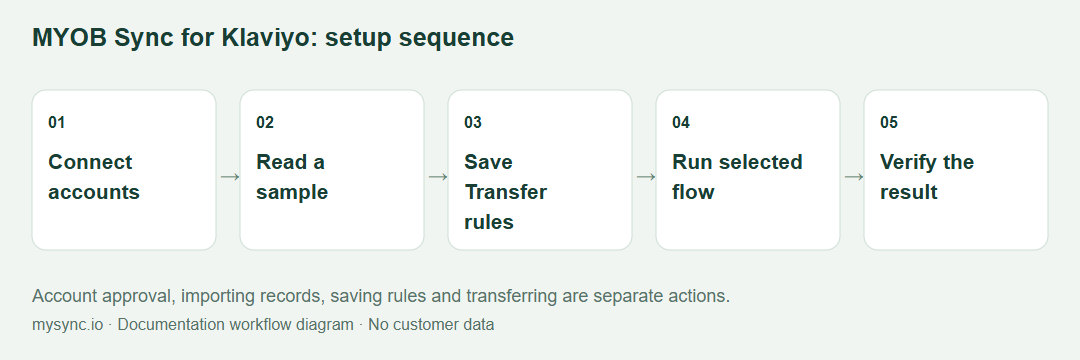
- Open the app link in a new browser session. Sign in to your authorised MySync reviewer account, or register and select Klaviyo when prompted. Confirm you arrive at the Klaviyo integration rather than another platform.
- Open Connections. Use Add MYOB connection, or Connect MYOB on the existing row. Complete MYOB approval and select the dedicated test company file agreed with MySync.
- Select Add Klaviyo connection, or Connect Klaviyo on the linked row. Select Connect with Klaviyo, sign in to the intended Klaviyo review account and approve the requested permissions. Use OAuth for this review rather than the optional legacy private-key method.
- After the callback, confirm that Connections shows the correct Klaviyo account name and MYOB company file, with both providers connected. If there are several MYOB sources, select the intended source.
- Ask MySync to confirm review-plan access for this setup before exporting. No unapproved payment or subscription charge is needed for review.
Use case A: preview MYOB customers without writing to Klaviyo
- Open Customers and load or refresh the customer preview for the dedicated test file.
- Check a synthetic customer's email address, customer/card reference and available name, company, phone and address fields against MYOB.
- Confirm the preview alone does not create Klaviyo profiles or change MYOB customer cards.
Use case B: export and update profiles
- In Transfer rules, enable customer syncing, select Manual and leave the optional destination list unselected. Use Active customers only for the first run. Save the rules.
- Select Sync customers now. Open Sync history and wait for the run to finish.
- In Klaviyo, find a synthetic customer's profile by email. Check the mapped name/company and populated location fields. Check custom properties MYOB_Customer_UID, MYOB_Card_ID, MYOB_Company_File, MYOB_Company_Name, MYOB_Source and MYOB_Is_Active.
- Verify that the run has not subscribed the profile to email or SMS marketing or removed existing suppressions. A customer record or list membership is not marketing consent.
- Run the unchanged sync again. Confirm unchanged customers are skipped and duplicate profiles are not created.
- Modify one synthetic customer's name in the dedicated MYOB test file, then run again. Confirm the existing Klaviyo profile is updated. Missing source fields should not clear existing profile data. Use synthetic data and restore any test edits when finished.
Use case C: optional list membership
- Create or select an authorised test list in Klaviyo. In Transfer rules, load the available lists, select that test list and save.
- Run the customer sync. Confirm exported profiles appear in the chosen list.
- Confirm list membership does not grant marketing consent. Repeat the unchanged run and check that profiles and memberships are not duplicated.
Use case D: scheduling and skipped records
- Confirm a synthetic MYOB customer without a valid email is skipped. With Active customers only enabled, confirm an inactive test customer is skipped.
- Select Hourly or Daily, save the enabled rules and observe the next scheduled run in Sync history. Manual runs can be used for the initial verification instead of waiting for a timer.
- Disable customer syncing after review so the dedicated test file is not left running automatically.
2. API endpoints, purposes and permissions
The OAuth request uses accounts:read, profiles:read, profiles:write, lists:read and lists:write. The implementation pins Klaviyo API revision 2026-10-15. No campaigns, flows, subscriptions, events or catalog permissions are requested for this app.
| Endpoint | Purpose | Klaviyo scope |
|---|---|---|
| GET /oauth/authorize on www.klaviyo.com | User approval using single-use state and PKCE S256. | The five scopes listed above. |
| POST /oauth/token on a.klaviyo.com | Server-side code exchange and refresh. | OAuth grant; client authentication. |
| POST /oauth/revoke on a.klaviyo.com | Revoke OAuth access when disconnecting the last linked setup for that Klaviyo account. | OAuth token revocation. |
| GET /api/accounts/ | Identify the connected account for the Connections table. | accounts:read |
| GET /api/profiles/ | Profile access verification used by the alternative private-key connection check. | profiles:read |
| GET /api/lists | Load destination lists, including pagination. | lists:read |
| POST /api/profile-import/ | Create or update a customer profile and retain its returned ID. | profiles:write |
| POST /api/lists/{list_id}/relationships/profiles/ | Add an exported profile to the optional selected list. | lists:write |
MYOB API requests identify eligible online company files and read Contact/Customer records in pages of 25. The integration does not write customer changes back to MYOB. Application API endpoints require authenticated, owner-scoped access; OAuth callbacks validate their server-side authorisation session.
3. Architecture and data flow
The reviewer's browser opens MySync, then the provider's HTTPS OAuth approval page. Each provider returns to a MySync callback. Code exchange and token refresh run on the backend. Provider credentials are encrypted using AES-256-GCM and tied to their owning setup. The background worker reads MYOB customers, validates eligible email addresses, maps populated fields, imports profiles and optionally adds list relationships. MySync stores per-customer profile IDs and payload hashes for changed/unchanged detection and resumable retries. Progress is visible in Sync history. OAuth passwords stay with the provider.
4. Recorded demonstration
A separate recorded demo must accompany the review submission. It should show signed-out access, MYOB and Klaviyo approval, customer preview, one profile export, optional list membership, an unchanged repeat run and disconnection. If no recording link accompanies the submission, contact tom@mysync.io before review begins. This written guide is not a substitute for the recording.
5. OAuth, error handling and disconnection tests
- From Connections, start Klaviyo approval and deny access. Confirm that no successful connection is shown and that you can restart approval.
- Approve access in a fresh attempt. Confirm the account name after the callback. Reconnect once and confirm the intended setup remains linked.
- Try reopening a previously completed callback. It must not authorise a second setup or consume the code again.
- With a dedicated Klaviyo test account connected to only this one MySync setup, select Disconnect on the Klaviyo row. Confirm syncing is disabled, stored credentials are removed and the OAuth integration is removed in Klaviyo. A shared Klaviyo authorisation may be retained while another MySync setup still uses it.
- Reconnect, then remove the app's access in Klaviyo. Trigger an operation that needs Klaviyo access. Confirm access is rejected, customer syncing stops and the UI requires reconnection rather than continuing to send data.
- If a provider error or rate limit occurs, inspect the failed run and retry after the provider permits requests. Do not treat a failed run as a completed export. Provide support with the run time and error, without tokens or customer payloads.
Settings URL: Klaviyo transfer rules. Support: user documentation and support@mysync.io. Terms of service. Privacy policy.