MYOB Sync for Pipedrive: Connection, Transfers and Troubleshooting
By the MySync team · Updated 23 November 2026
1. Check account access and the intended workflow
This procedure configures MYOB Sync for Pipedrive. It is separate from the business planning guide on mysync.io. You need access to the intended CRM account and online MYOB file. Check your CRM edition permits the modules and custom fields used by the selected flows.
Pipedrive postal-address exports are not included. Won-deal transfers use one gross-value service line; they do not reproduce deal product breakdowns, recurring schedules or customer payments.
Public customer access is opened after Pipedrive approval. Use access supplied by MySync while reviewing the integration.
2. Approve the two Connections rows
- Register or sign into MySync, then open MYOB Sync for Pipedrive. A setup is prepared for your account.
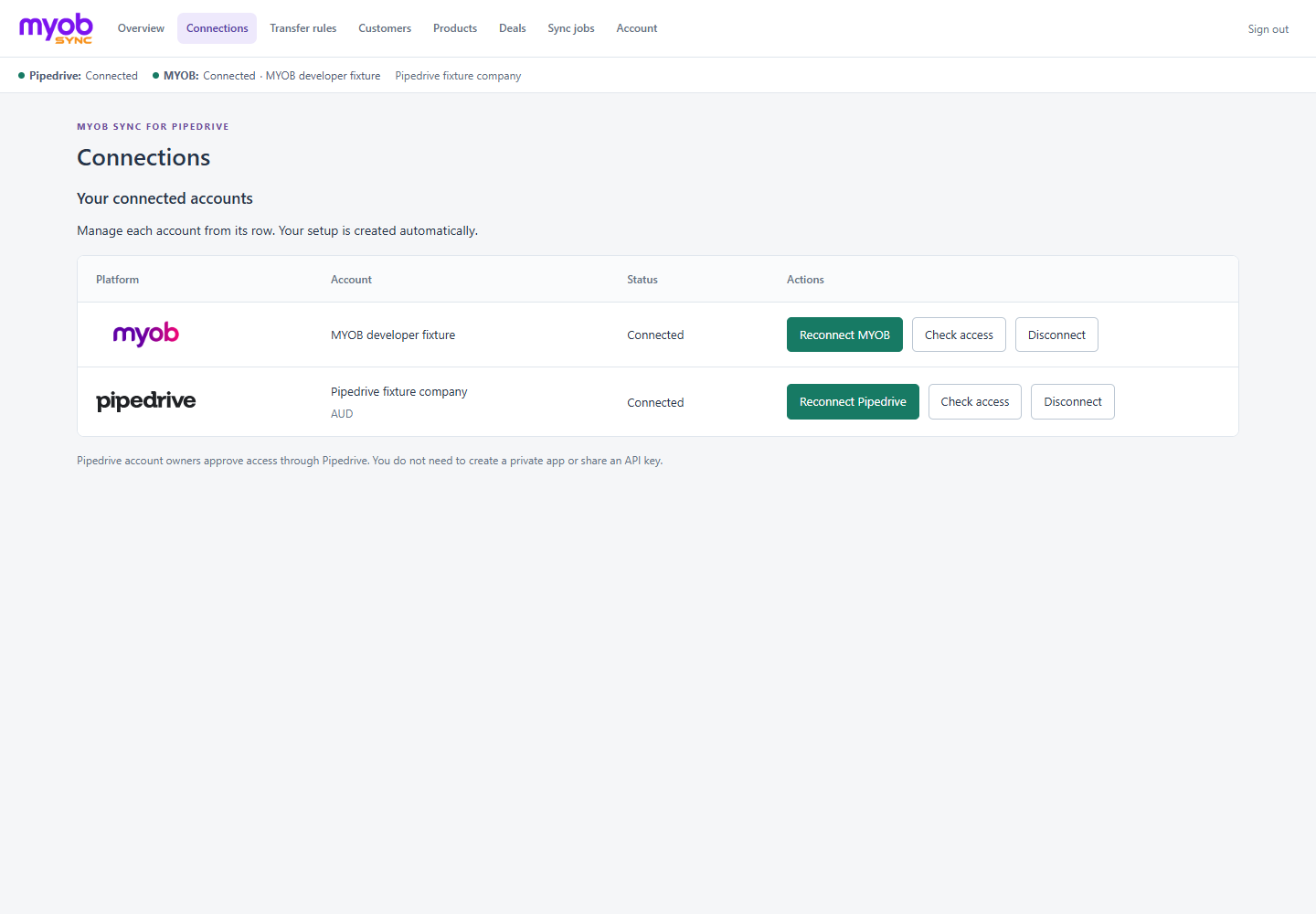
- In Connections, choose Connect Pipedrive in its table row. Sign into the account containing the records you want to use and approve the requested permissions.
- Choose Connect MYOB in the MYOB row. Complete any two-factor challenge and select the intended company file.
- Return to Connections and compare the saved account identity, currency and MYOB file name. Use the row’s reconnect action to replace an approval or refresh account details.
3. Run a small customer export
- Open Transfer rules → Customers and enable customer exports. Select Plus or start the available trial before running paid flows.
- Use an active MYOB business customer and, if needed, an individual with a valid email. Save the rules and run the saved flows.
- Open the customer record results and compare the destination Organizations and Persons. MYOB business customers become Pipedrive Organizations; individuals become Persons. Linked destination IDs and MySync custom contact fields keep subsequent updates attached to the same records.
- If an existing name/email match is held, inspect that destination record, enter its record ID in the review action and approve the link. Do not guess the ID.
- Repeat the unchanged export. It should retain the linked destination record. If a managed field was edited in the CRM, review the conflict before approving replacement.
Customer synchronisation does not grant marketing consent or send a campaign.
4. Enable products and financial summary fields
- Confirm the MYOB accounting currency and the currency reported in Connections match. After changing a CRM default currency, reconnect it in MySync.
- In Transfer rules → Products and summaries, enable the desired flows. Summary exports require customer exports.
- For products, choose an active MYOB item enabled for sale, with a unique item number and a non-negative tax-exclusive base selling price.
- Save and run the flow. Compare the name, SKU/code, description and price in the CRM. An existing SKU match must be linked deliberately.
- For summaries, inspect the MySync balance and latest-invoice fields on the linked company/contact. Compare them with MYOB. These fields do not create CRM invoices.
Products and summaries are included in Plus. This connector does not apply currency conversion or publish stock quantities.
5. Select a won stage and capture deals
- Prepare a small test deal with a current close date and an amount in the configured accounting currency.
- Choose the pipeline and supported Won option in Transfer rules → Deals and accounting.
- Select a MYOB document type, active income account and sales tax code. Use a linked MYOB customer or select an explicit fallback customer.
- Use the final gross deal amount and tax-inclusive prices. The transfer is one service summary line; it does not reproduce product subforms or individual product discounts.
- Save, then import deals. Open the captured record and inspect its amount, date, associations and source details. Importing must not create a MYOB sales document.
6. Preview, approve and verify the MYOB document
- Open the captured deal and select Preview MYOB transfer.
- Check the customer, income account, sales tax, source reference, date, descriptions and expected total. Choose the Pipedrive pipeline and Won deals option. The native deal status must still be won when you transfer it. The gross deal value becomes one tax-inclusive service line in the selected MYOB document.
- Tick the approval box only after reviewing the current preview, then approve the transfer.
- Wait for the job outcome. Open the resulting service quote, order or invoice in MYOB and compare its reference, customer, line amounts, tax and total.
- Reimport an unchanged deal and confirm it remains linked to the existing document. A sent deal cannot be approved again as a new sale.
The flow does not create a customer payment or change item inventory. If the source changes before approval, reimport and preview again. If a write is uncertain, use Reconcile to check the existing MYOB reference; do not create a manual duplicate or repeatedly retry a POST.
7. Check the first automatic run
Select hourly or daily only after enabling at least one supported flow. Save and inspect the first result in Sync history. Scheduled runs export selected customer/product data and capture deals; they do not approve financial documents. Return to manual operation when making major mapping changes.
8. Resolve a held or failed record
The app is not available to your company
Customer distribution of the public Pipedrive app is subject to Pipedrive approval. An installation in the developer company is not evidence that customer distribution has been approved. Contact MySync for access availability.
Products or summaries cannot be enabled
Check Plus access, CRM permissions and matching currencies. A currency display of USD when the intended MYOB file uses AUD needs correction at the source and a reconnect, not a different number entered into a price field.
The total or customer needs review
Check the gross deal amount, supported line items, price tax treatment and chosen MYOB tax code. Review associated customer links; the app will not silently create a new MYOB customer.
A previous financial transfer was not confirmed
Read the record note and search MYOB for the source reference. Keep the uncertain record on hold and use reconciliation or contact support. Failed duplicate checking prevents a financial export.
9. Manage the subscription and connections
Free access lets you connect accounts and review available data. Plus is AUD28 per month and includes every supported CRM flow, with a 14-day trial on a new paid subscription. Provider subscriptions are separate.
Use the Account screen to open Stripe billing management. Cancellation stops renewal; current access follows the confirmed subscription state and access end date. Disconnecting a CRM is separate from cancelling its subscription. Reconnecting after changing an account or company file requires reviewing the saved rules again.
Contact support@mysync.io with the app name, source record reference, run time/time zone and exact error. Do not send passwords, OAuth client secrets or tokens.
Pipedrive integration features · Workflow planning · All help guides